

WordPress email that was working and stopped is usually one of three problems, ordered below from the fastest check to the most involved: misconfigured admin settings, a hosting server that blocks or rate-limits outbound mail, or a DNS authentication failure (SPF/DKIM/DMARC) that causes the receiving server to reject the message.
This assumes email was previously configured and working. If email was never set up, start with How to Set Up Email on WordPress.
Check email settings
Log in to the WordPress dashboard, go to Settings > General, and check the Administration Email Address. This is the address WordPress uses for admin notifications (new user registrations, update alerts, comment moderation). If it is wrong, fix it.
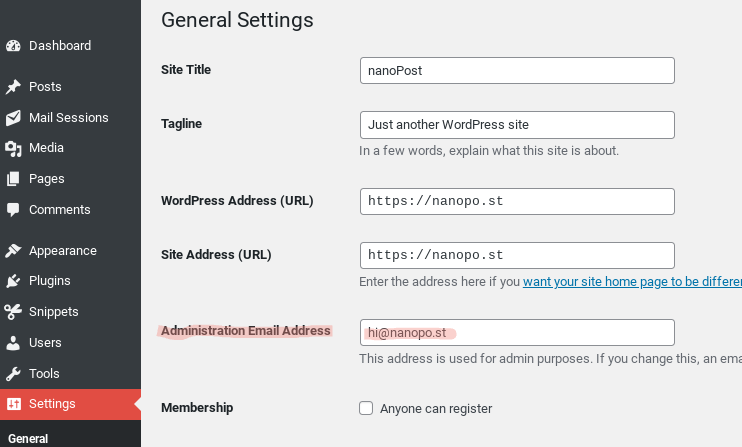
Also verify that the WordPress Address (URL) and Site Address (URL) fields are correct. The case that breaks email here is a mismatch between siteurl and home after a domain change: the From: header is built from the site URL, and a mismatched value can produce a From: address whose domain has no published SPF/DKIM record for the sending server, causing receivers to reject or junk the message.
Send a test email
Password reset test (no plugin needed)
The fastest check: log out, go to the login screen, click “Lost your password?”, and enter your username. If the password reset email arrives in your inbox, WordPress email is working. Ignore the reset instructions and log back in normally.
If the email does not arrive, move to the next test. For the failure modes specific to this flow (the WooCommerce customer reset path, the security plugin throttle, the 24-hour key expiry, the default From address), see Users not receiving password reset emails in WordPress.
Use a plugin to test email delivery
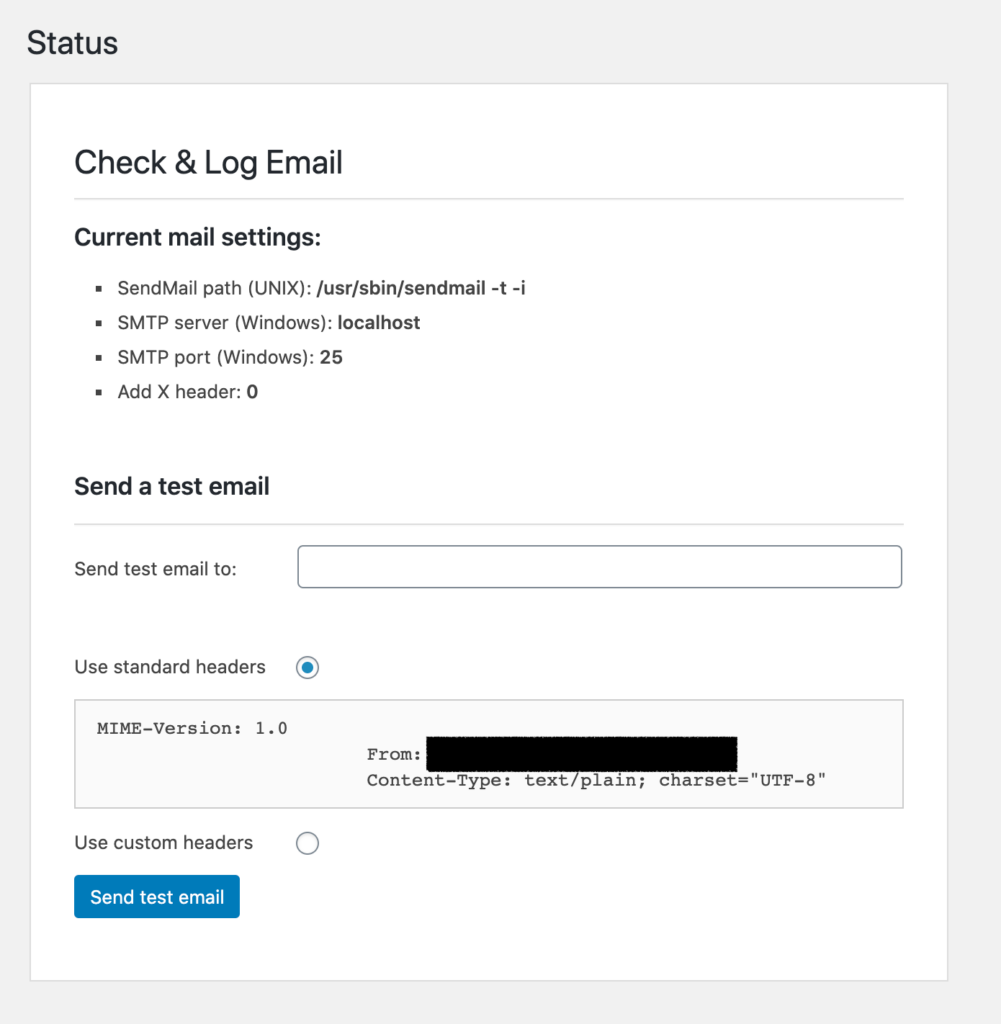
The Check & Log Email plugin sends a test email and logs the result.
- Install and activate the plugin.
- Go to Tools > Check Email.
- Enter a valid email address and click “Send test email.”
- Check the log page: a green check indicates success, a red cross indicates failure.
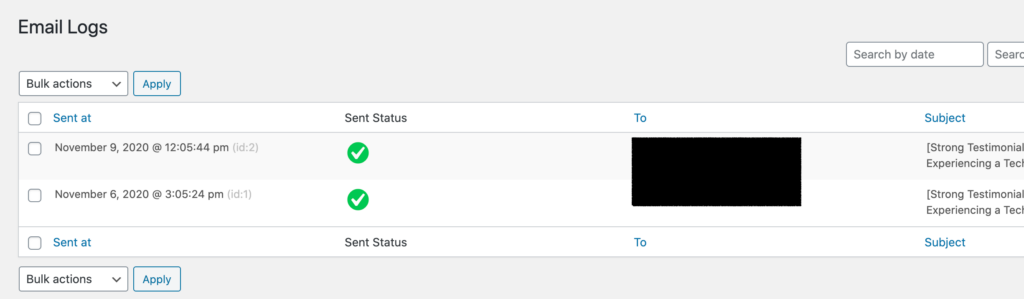
If the log shows success but the email does not arrive, the problem is downstream (spam filtering, DNS authentication, or the receiving server). The relay log says the message left WordPress; the receiver’s inbox-placement decision happens past that. For diagnosing the gap between “delivery succeeded” and “the user received the email,” see How to test whether WordPress email actually reaches the inbox. If the log shows failure, the problem is on the sending side (server configuration, hosting limits, or SMTP plugin misconfiguration).
Capture the raw error without a plugin
On locked-down sites where installing a plugin is not an option, the wp_mail_failed action hook captures the underlying PHPMailer exception with three lines in a mu-plugin or the active theme’s functions.php:
add_action( 'wp_mail_failed', function ( $error ) {
    error_log( 'wp_mail failed: ' . print_r( $error->errors, true ) );
} );
With WP_DEBUG_LOG enabled in wp-config.php, the SMTP error (host, error code, message) lands in wp-content/debug.log. This is the same diagnostic the logging plugins surface in their UI, just written directly to disk. The PHPMailer exception messages are verbatim, including the SMTP error code returned by the upstream server.
Investigate server and hosting issues
Hosting sending limits
Most shared hosting providers limit outbound email. Common limits:
- SiteGround: 400/hour
- Bluehost: 500/hour
- Hostinger: 100/day (free email tier)
- GreenGeeks: 100/hour
- DreamHost: 100 recipients/hour
If the site has been sending more email than the host allows (form submissions, WooCommerce orders, notification-heavy plugins), messages will be silently dropped or queued. Documented limits are on each host’s entity page; for undocumented or recently-changed limits, the host’s support is the authoritative source.
Host blocks outbound SMTP ports
A second host-level cause: many shared hosts and managed WordPress platforms block outbound connections on ports 25, 465, or 587 to prevent abuse from compromised sites. The symptom looks identical to a misconfigured SMTP plugin: settings are correct, credentials are correct, the test email hangs or times out with a “connection refused” or “connection timed out” error in the SMTP plugin’s log.
Test the port from the host’s command line if SSH is available:
openssl s_client -connect smtp.postmarkapp.com:587 -starttls smtpA successful handshake proves the port is open; an immediate disconnect or timeout proves it is not. From PHP without SSH, the WP-CLI shell or a small fsockopen() probe in a mu-plugin produces the same evidence. Once the port confirms open, Test WordPress mail server with swaks covers sending a real authenticated message through it and reading the full SMTP transcript.
If the port is blocked, the SMTP plugin cannot be made to work and the fix is one of three: switch the SMTP plugin’s transport to the provider’s HTTP API (most providers expose one and most plugins support it), open a host support ticket asking for the port to be allowlisted for the site’s IP, or move to a host that permits outbound SMTP.
SMTP plugin misconfiguration
If an SMTP plugin is installed (WP Mail SMTP, FluentSMTP, Post SMTP), the host, port, encryption, and credentials must match the provider’s documentation. Each sending service has its own correct combination: Postmark uses smtp.postmarkapp.com:587 with STARTTLS and an API token as both username and password; Mailgun uses smtp.mailgun.org:587 with a domain-scoped SMTP credential; SMTP2GO uses mail.smtp2go.com:2525 (or 587) with the same. The provider’s entity page on nanoPost links to the canonical reference for each.
When the plugin’s send fails, the error message captured by the plugin’s log (or the wp_mail_failed hook above) carries an SMTP response code. The code maps to the failure class.
Common SMTP error codes
| Code | Meaning | Where the fix is |
|---|---|---|
| 421 | Service not available, closing connection; commonly used for rate-limits and graylisting | Check the host’s sending limits above; if using a provider, check the provider’s per-minute send rate |
| 535 | Authentication credentials invalid | SMTP plugin credentials (username, password, or API token) are wrong, expired, or revoked |
| 550 | Mailbox unavailable or message rejected for policy reasons | Usually a DNS authentication failure (see below) or a sender reputation problem; the response text identifies which |
| 552 | Storage allocation exceeded (commonly: message size exceeds the receiver’s per-message limit) | Reduce attachment size or send via a provider with a higher per-message ceiling |
| 554 | Transaction failed, often a policy or reputation block | Sender IP or domain is on a block list; verify reputation and check DMARC alignment |
The Check & Log Email log page and the SMTP plugin’s own log surface the full response. The code is the first three digits; the text after it identifies the specific cause.
PHP mail() fallback
If no SMTP plugin is installed, WordPress sends via PHP’s mail() function through the hosting server’s local mail transfer agent. This is the least reliable method: messages are typically unsigned (no DKIM), may fail SPF checks, and are subject to the host’s outbound limits.
An SMTP plugin pointed at a dedicated relay fixes the three problems unauthenticated mail() creates: the From-domain SPF check passes (the relay is an authorised sender for the domain), outbound mail is DKIM-signed, and the host’s shared mail-server reputation stops contributing to the receiver’s inbox-placement decisions. Any of the major providers (Postmark, SMTP2GO, Mailgun) resolves the pattern.
When some emails arrive but others fail
A common symptom pattern is that one type of email (a WPForms weekly summary, a WooCommerce admin notification) arrives reliably while another type (individual form submissions, password resets) does not. A logging plugin will record both as “sent” because the underlying wp_mail() function returns success when the message is handed off to the transport, not when it is delivered. The two messages are taking different paths.
The usual cause: one path goes through a configured SMTP plugin, the other falls back to PHP mail(). WPForms’ own summary email, for example, may be sent through its own integration, while submissions are routed through wp_mail() and pick up whatever transport is configured there. If no SMTP plugin is installed (or the plugin is installed but not capturing wp_mail() calls from a specific source), the PHP mail() fallback handles the second path and its messages silently disappear at the receiving server.
To isolate the path each email type takes, install the Check & Log Email plugin and inspect the log. The log records the SMTP transport for each send. Any message logged without the configured SMTP plugin’s transport is going through PHP mail() and needs to be brought into the plugin’s routing.
DNS authentication
If email sends from WordPress but lands in spam or is rejected by the receiver, the cause is almost always DNS. The three records that matter are SPF, DKIM, and DMARC, and each fails differently.
SPF
SPF is a single TXT record at the apex of the sending domain that lists the IP ranges and hostnames authorised to send mail as that domain. A receiver looks up v=spf1 ... for the From-domain, checks whether the connecting server is on the authorised list, and applies the policy at the end of the record (-all hard fail, ~all soft fail).
Two SPF problems break WordPress sending in practice:
- The sending server is not in the record. When WordPress sends via PHP
mail(), the connecting server is the host’s local MTA, whose IP must be authorised by the From-domain’s SPF. Most shared hosts publish guidance; some requireinclude:of their SPF mechanism. When WordPress sends via a provider, the provider’s owninclude:must be in the record; the exact value is in the provider’s DNS-setup screen and varies per provider. - The 10-DNS-lookup limit is exceeded. SPF allows at most 10
include:,a,mx,ptr, orexistslookups per evaluation. A domain that has accumulated includes for the host, the SMTP provider, the form provider, the marketing provider, and a calendar provider often exceeds the limit; the receiver returns apermerrorand treats SPF as failed regardless of the actual authorisation. Use MXToolbox’s SPF Checker to count lookups, then flatten or consolidate.
DKIM
DKIM is a public key published as a TXT record at selector._domainkey.domain.tld. The sending server signs each outbound message with the matching private key; the receiver fetches the public key from DNS and verifies the signature.
Two practical failure modes:
- The record is not published, or is published under the wrong selector. Each provider uses its own selector format. Amazon SES publishes three CNAME records (one per signing key); most other providers publish a single TXT or CNAME at a provider-specific selector. The exact records to publish are in the provider’s DNS-setup screen; the diagnostic is
dig TXT selector._domainkey.domain.tld, which must return the published key. - The signature fails because of an upstream rewrite. Mailing lists, forwarders, and some MTA-level relays rewrite the message body or headers between sender and receiver, breaking the DKIM signature. ARC (Authenticated Received Chain) is the mitigation; few WordPress senders need to handle this directly, but it explains why a correctly-signed message can fail DKIM at the final hop.
DMARC
DMARC is a TXT record at _dmarc.domain.tld that tells receivers what to do when SPF or DKIM fails for the domain. The policy field (p=) is the part that hurts: p=none reports but takes no action, p=quarantine sends failures to spam, p=reject causes the receiver to drop the message at SMTP time with a 5.7.x response.
The DMARC failure pattern that confuses operators most is alignment. DMARC requires that the From-header domain match the SPF-authenticated MAIL FROM domain (or the DKIM d= domain). A WordPress site whose wp_mail() From-address is [email protected] but whose host’s MTA sends with MAIL FROM: [email protected] passes SPF (the provider’s domain is authorised) but fails DMARC alignment (the From-domain and the SPF-authenticated domain do not match). The fix is to switch to an SMTP plugin pointed at a relay that signs with the From-domain’s DKIM key, which aligns the d= and From-domain.
DMARC aggregate reports (the rua= address in the record) arrive as daily gzipped XML attachments and itemise every authentication attempt, including the IP that sent, the domain it claimed, and which check failed. Parsing them is the only way to find the failure modes a p=none policy is silently allowing.
For a step-by-step walkthrough of publishing the records, see Set Up DNS for WordPress Email. For the field definitions and acceptable values, see the SMTP field manual.
When every check passes and mail still does not arrive
If the password-reset test sends, the SMTP plugin reports success, the host is not blocking ports, the per-hour limit is not being hit, and SPF/DKIM/DMARC all pass, the cause is downstream of WordPress entirely: receiver-side spam-filter heuristics, sender-IP reputation on the relay, or a content-based filter at the destination. Capture an inbox-placement test (see /how-to/test-wordpress-email-inbox-placement/) and review the SMTP provider’s bounce log; the next move is at the provider or the receiving server, not in WordPress.