
Email Check can tell you that WordPress accepted a test email. It cannot see whether the email arrived. nanoPost Email Canary (Email Canary for short) adds that part: each test email goes to an address that Email Canary watches, the plugin screen shows whether it arrived and whether it passed the checks that Gmail and Outlook use to verify that the mail comes from your domain, and Email Canary emails you when a test email does not arrive or does not pass.
Email Canary is optional. Email Check works in full without it, and nothing is sent to nanoPost until you turn it on. This page is for Email Check 1.8.0 and later. On 1.7.x, the plugin screen says “Connect to nanoPost”: see connect to nanoPost.
Turn on Email Canary
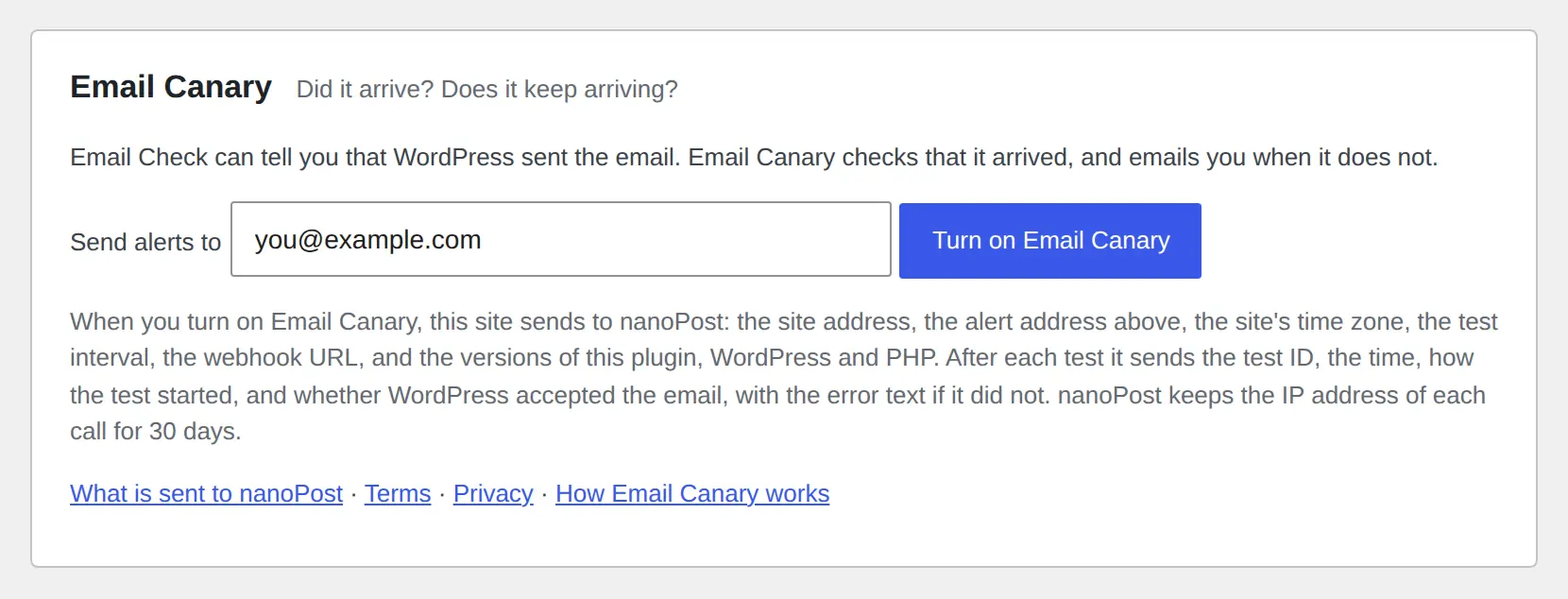
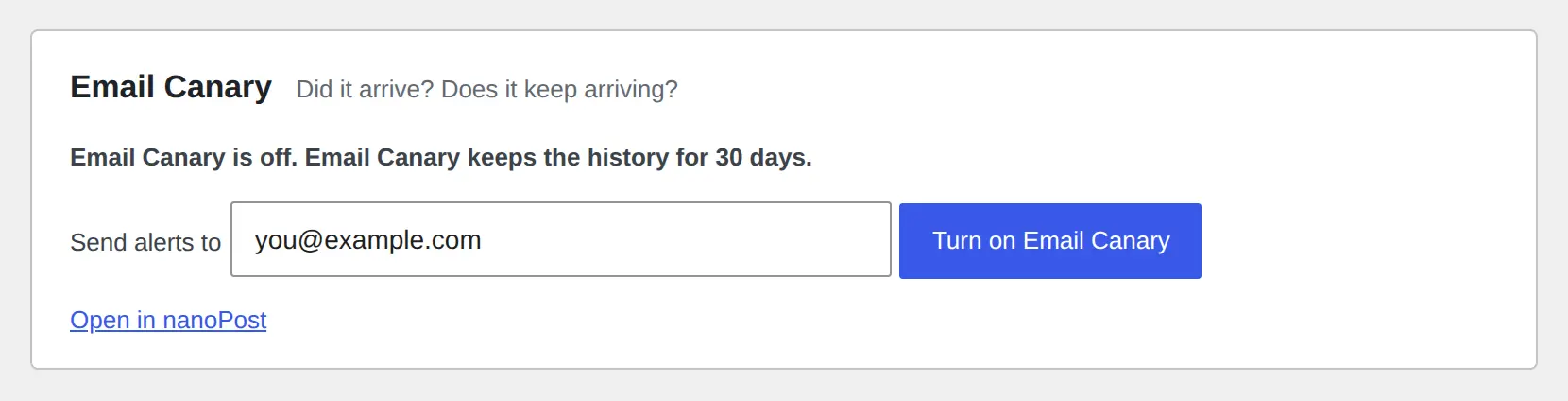
- Open Tools > Email Check. The Email Canary area is under the Email Check area.
- In Send alerts to, look at the address. The plugin fills in your own email address, from your WordPress user; change it to the mailbox where you want alerts. The What is sent to nanoPost link under it leads to the list below.
- Click Turn on Email Canary. The plugin says Email Canary: turned on. A test email went out. Its arrival shows below. At the same time, Email Canary sends a confirm email to the alert address.
- Open that email and press Confirm on the page its link opens. Until you do, no alerts go out (why).
There is no sign-up and no password. While Email Canary is on, the test emails go to Email Canary’s address for the site instead of the address in the Email Check settings.
The Email Canary area shows when each test email arrived, with one label for each of the three checks: SPF, DKIM and DMARC. A label with a tick passed. A label with a cross did not pass, for example DMARC did not pass. A label with a warning sign means there was no result to pass or fail, for example DKIM not signed or SPF: no record.
If the site’s address is not public, for example a local or staging address, the plugin warns This site address is not public. Test emails from it may never leave the server. If the site is a copy of a live site, see when the site address changes.
What sends an alert
Email Check sends a test email on the schedule in Test how often (twice a day, daily or weekly; daily by default), and the Email Canary area shows when the next one is due. After you confirm, Email Canary alerts you when a test email does not arrive in time, when WordPress reports that it could not send it, when Email Canary’s mail server refuses it, or when it no longer passes SPF, DKIM or DMARC after it passed before. You get one alert for each problem, and one message when it ends.
Alerts go by email to the address next to Alerts go to. If you set a Webhook URL in the Email Check settings, Email Canary sends its alerts there too, so you hear about a problem even when email to you does not work. See set up the webhook.
Before you confirm: alerts are off
Until the address is confirmed, the Email Canary area says Alerts are OFF until you confirm, with the address the confirm email went to and the time when the 24 hours for confirming end. Other wp-admin pages show the same as a notice, with a Why confirm link to this section.
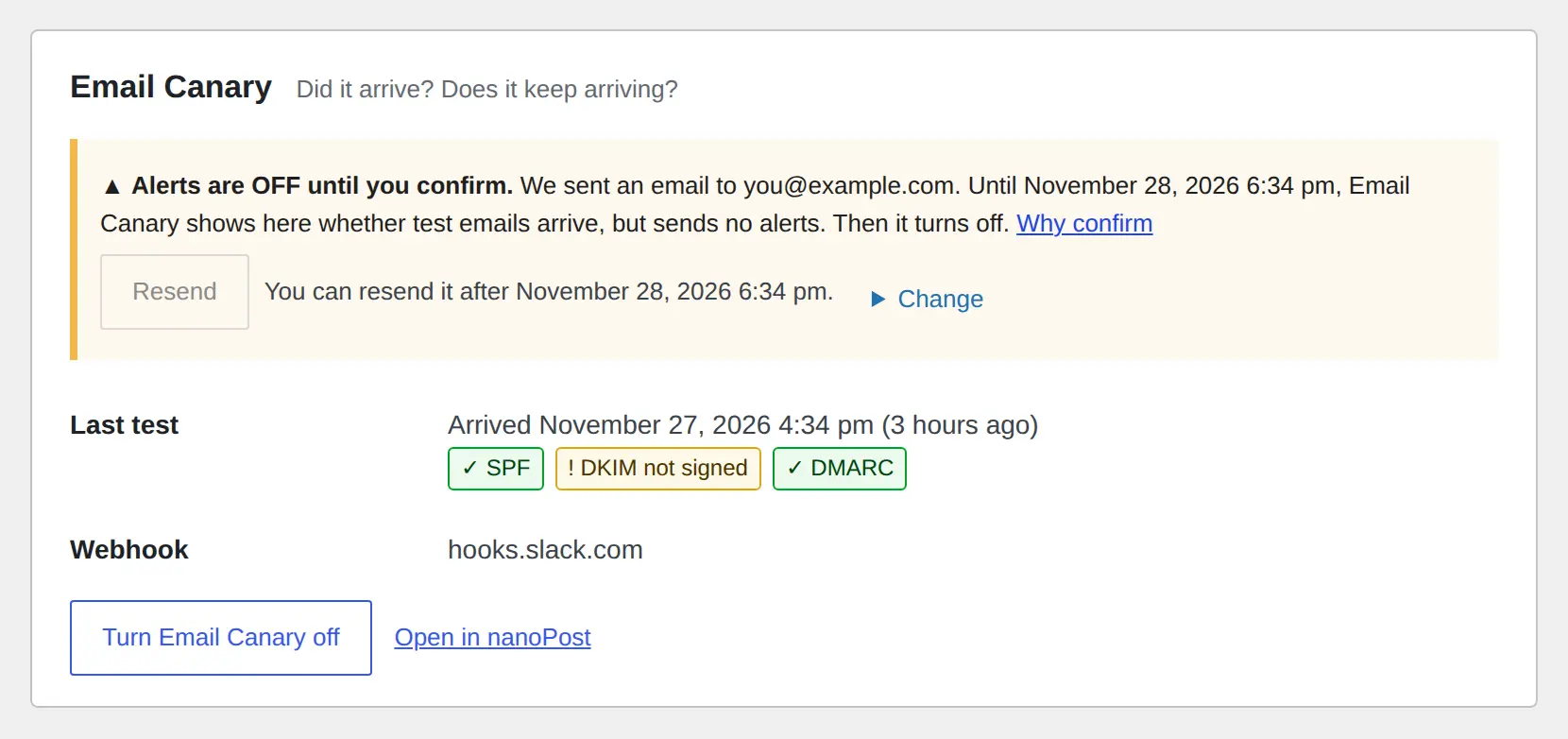
In that time:
- You still see test results. For 24 hours, each test email shows whether it arrived and passed, on the plugin screen.
- No alerts go out. Email Canary sends no email and no webhook message about a problem until the address is confirmed. A test email that did not arrive shows on the plugin screen only.
- Resend sends the confirm email again, at most once a day. Until then, the plugin says You can resend it after a time. Change lets you correct the address.
If Email Canary cannot send another confirm email that day, the plugin says Try again tomorrow. The test results still show on the plugin screen.
If nobody confirms within 24 hours, Email Canary stops watching the site and sends one more email to say so. The plugin screen says Email Canary is off: followed by the address that was not confirmed. Click Turn on Email Canary to start again, and confirm the new email.
An arrival before the confirm shows that the path works today. It does not protect the site yet: you hear about a later problem only after you confirm.
The confirm page
The confirm email has one link. It opens a page on nanoPost with one button, Confirm, and only the button confirms. Some mail systems open links in emails to scan them, so opening the link alone changes nothing.
When you press Confirm, the page says Email Canary is on for your site, and:
- If an account has this address, the site joins it. If not, the account is made now, with this address.
- Alerts start. The plugin screen says Email Canary is on, with your address next to Alerts go to.
- A welcome email follows. It says what Email Canary does now, what you will get from it, and how to stop.
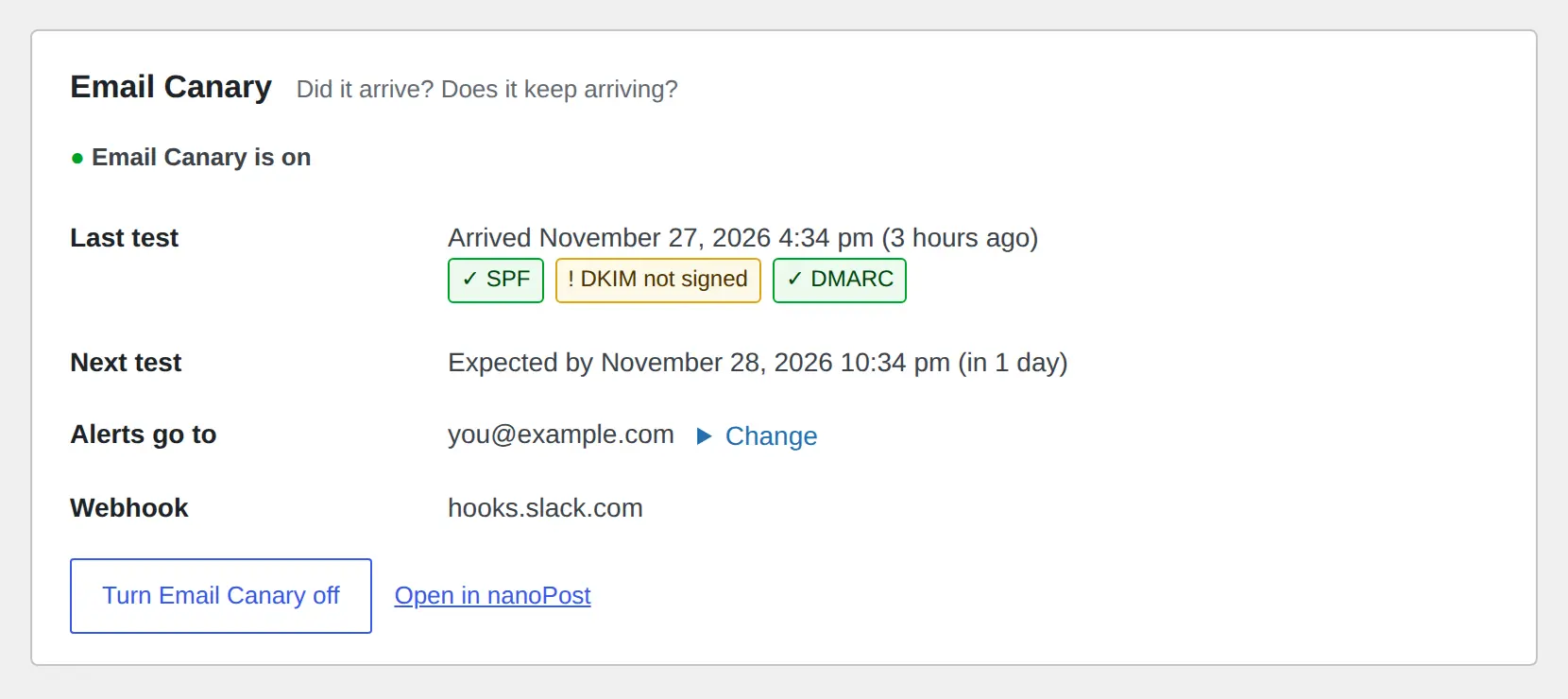
Confirming does not log you in: Open nanoPost on the confirm page takes you to the log-in page, where you ask for a log-in link.
If a problem is already open when you confirm, Email Canary tells you at once, on the page and by email.
When your account is full
An account can watch up to 5 sites. A confirm that would make a sixth is refused, and the plugin screen says Your nanoPost account has reached its limit of sites. Remove one in nanoPost, or ask us for more. The confirm page says Alerts are OFF for your site. The site then works as an unconfirmed one: test results for 24 hours from when you turned it on, then off. Sites that are off do not count, so turning off a site you no longer need also makes room.
Change the alert address
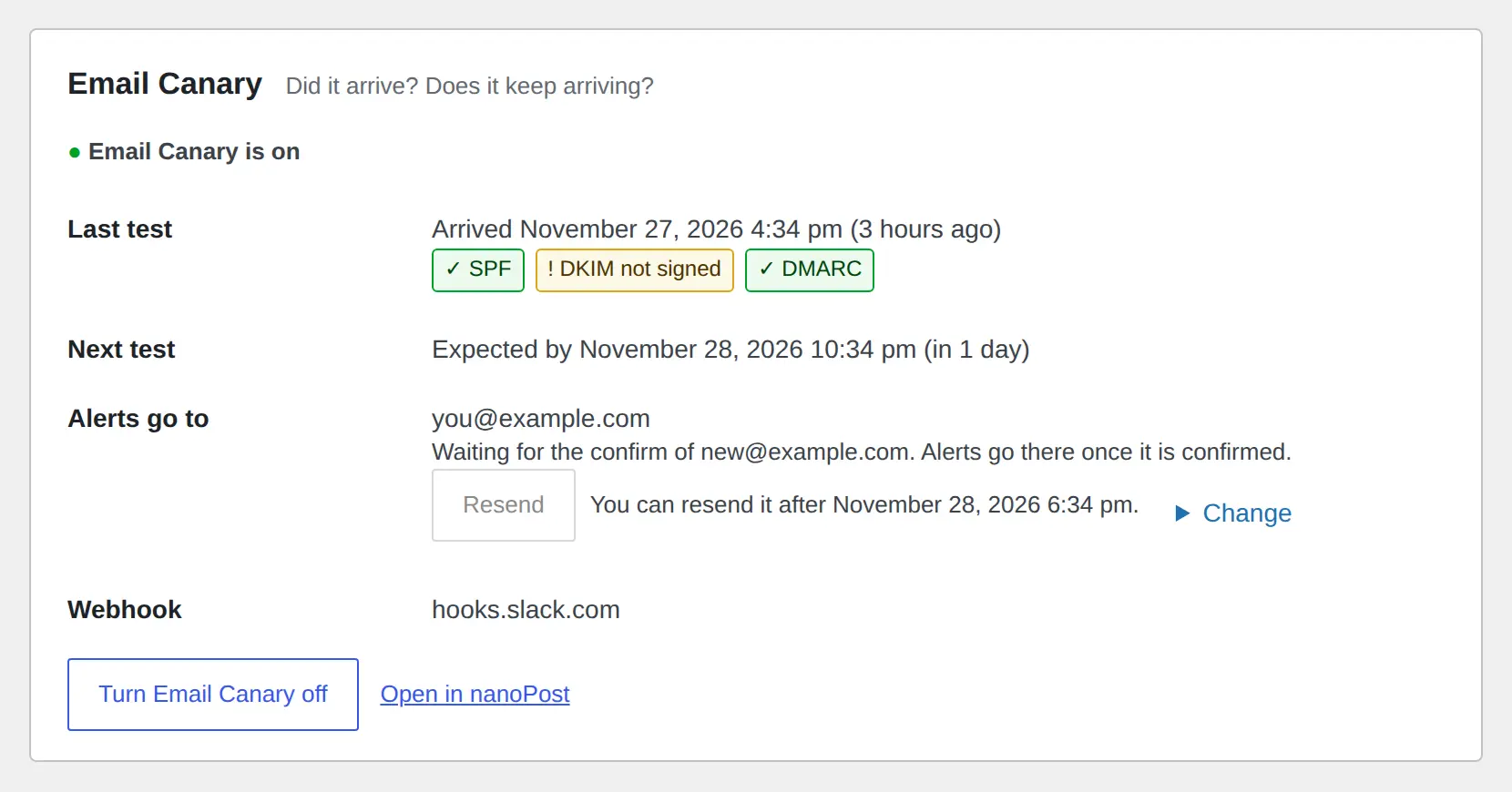
Next to Alerts go to, click Change, enter the new address and click Send confirm email. The plugin says Waiting for the confirm of the new address. Until it is confirmed, alerts still go to the old address; once it is confirmed, the new address replaces it. Nothing else changes: the site keeps its history and stays in the same account.
If someone else confirmed your site
If the alert address had a typing mistake, and the owner of the mistyped address pressed the confirm button, the site is in their account and they get its alerts. No screen warns you about this, because Email Canary cannot tell a stranger from you. After you confirm, look at the address next to Alerts go to.
To fix it, turn Email Canary off on the plugin screen, then turn it on again with the right address and confirm. The history belongs to the account that confirmed the site, so the site starts again as a new one in your account, with no history. The copy in the other account stops and is deleted after 30 days.
If the plugin loses its connection
If the plugin’s settings are lost, for example after you delete and reinstall the plugin, or restore an old copy of the database, turn Email Canary on again with the same alert address. After you confirm, the site gets its earlier history back.
Stop watching
- Turn Email Canary off on the plugin screen. Email Canary stops watching the site and sends no more alerts. The plugin says Email Canary is off. Email Check sends test emails to the address in the settings again. Email Canary keeps the history for 30 days. Turn it on again within those 30 days to keep the history.
- Stop watching this site, at the foot of any Email Canary alert email, does the same, after you press the Stop watching this site button on the page it opens. That page then says Email Canary is off. History kept 30 days. To watch again, turn it on in the Email Check plugin. The plugin screen then says Email Canary is off (asked for by email).
A stop that you asked for stays until someone clicks Turn on Email Canary.
Deactivate or delete the plugin
When you deactivate Email Check, it tells Email Canary that the site stopped, so you get no alert about missing test emails. When you activate it again, Email Canary starts watching again, with no new confirm. If you turned Email Canary off yourself before, it stays off.
If the plugin cannot reach nanoPost when you deactivate it, Email Canary does not hear about the stop, and alerts you when the test emails stop arriving. Use Stop watching this site at the foot of that email. After that, click Turn on Email Canary when you activate the plugin again.
When you delete the plugin, it tells Email Canary to stop watching the site, then removes its settings. The history is deleted after 30 days.
When the site address changes
If the site’s address changes, for example on a copied staging site or after a move to a new domain, the plugin turns Email Canary off, so a copy cannot send test emails in the live site’s name. The plugin screen says Email Canary is off: the site address changed (a copied or moved site). Click Turn on Email Canary to watch the site at its new address. For Email Canary, a new address is a new site, with no history.
The monthly email
At the start of each month, Email Canary emails a count for the month before: the scheduled test emails that arrived, and their SPF, DKIM and DMARC results. Each monthly email has a Turn it off link that stops the monthly emails with one click.
Log in to nanoPost
In nanoPost, the Canaries page lists the sites your account watches, and you can remove a site there. nanoPost has no passwords. To log in, enter your email address on the log-in page; nanoPost sends you a link. The link works once, for 30 minutes, and keeps you logged in on that browser for 30 days. Your mailbox is the only key: anyone who can read it can log in to your nanoPost account.
You do not need to log in to read an alert. See the details in an alert email opens that site’s page without a log-in, for 30 days. The page shows the site’s state, the times, and the SPF, DKIM and DMARC results, but no sender addresses and no IP addresses.
What is sent to nanoPost
Nothing is sent until you click Turn on Email Canary. While Email Canary is on, the site sends:
- when you turn it on: the site address, the alert address you typed, the site’s time zone, the test interval, the webhook URL if you set one, the versions of the plugin, WordPress and PHP, and a random key that the plugin makes for this site;
- the same site settings again when one of them changes;
- for each test: a test ID, the time it was sent, what started it (the schedule, a user or WP-CLI), whether WordPress accepted the email, and its error text if it did not (at most 500 characters; it can contain host names or email addresses);
- a request for the result of each test, after it is due, and for the state of the site when you open the plugin screen;
- when you resend the confirm email or change the alert address: that address;
- when you turn it off or on, deactivate or activate the plugin: which of these happened;
- the plugin version in every call.
The test emails go to Email Canary’s address for the site instead of the recipient you set. Email Canary receives each test email and its headers, as for any email. nanoPost keeps the IP address of each call for 30 days. The plugin sends no user names or other user data, no other email, and no other settings. The alert address is sent only as you typed it.
The privacy policy says how long nanoPost keeps each part.